Organizations & Members
Manage your org, invite members, and configure permissions.
Organizations
Every Arcanon account belongs to an organization. Orgs provide:
- Data isolation — All repos, scans, services, and products are scoped to one org
- Member management — Invite teammates and control their permissions
- API keys — Org-scoped keys for scanner authentication
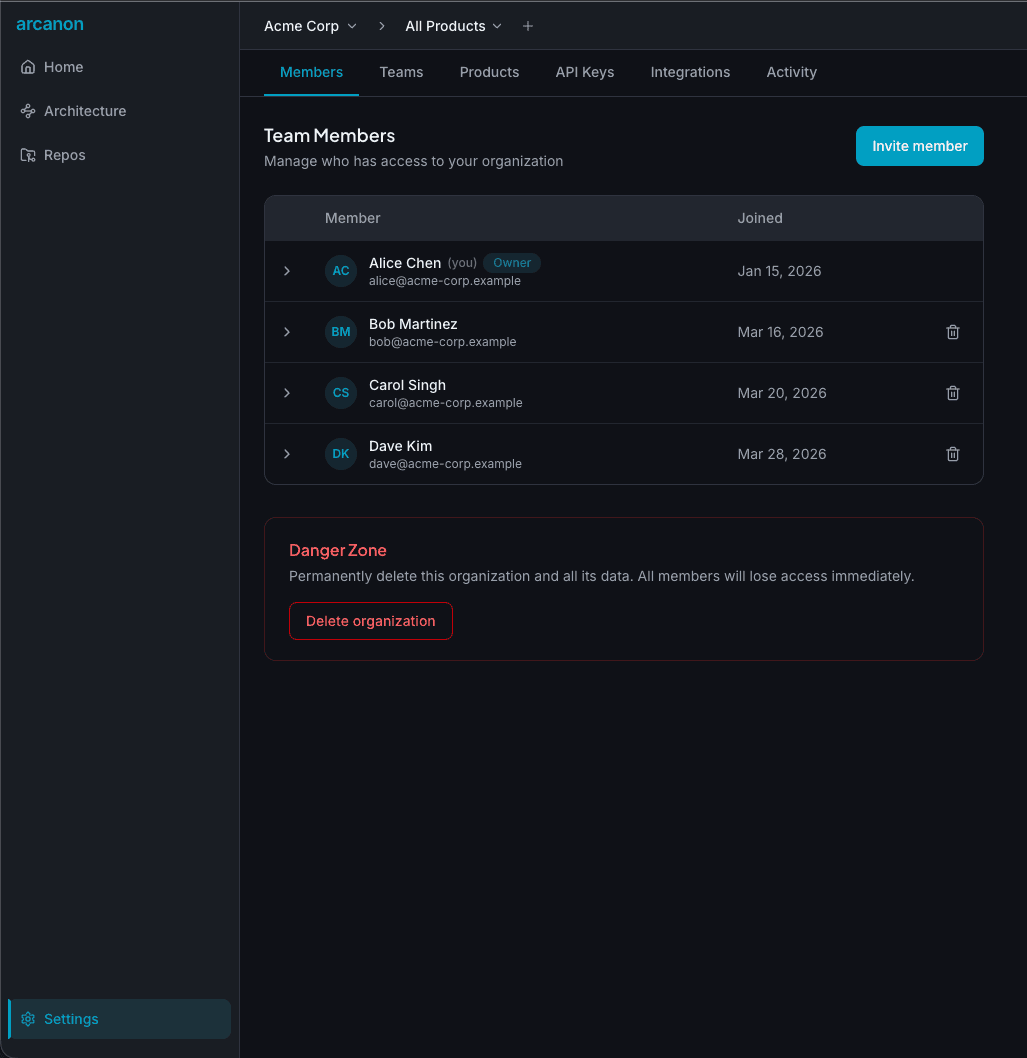
When you sign up, an org is auto-created from your username. You can rename it in Settings > Members.
Inviting members
- Go to Settings > Members
- Click Invite member
- Enter their email address
- Set their permission flags
- Click Send invitation
The invited user receives an email with a link to accept. Once accepted, they can access the org's data.
Permission flags
Permissions are independent boolean flags — each can be toggled on/off per member:
Data
- Upload scan results — Run the scanner and upload results
- Register new repos — Add new repositories to the org
Organizational
- Manage products — Create, edit, and delete products
- Manage repo settings — Configure repository settings
Architecture
- Declare connections — Manually declare service connections
People
- Send invitations — Invite new members to the org
- Manage member permissions — Edit other members' permission flags
Admin
- Org admin — Manage org name, billing, and destructive actions
Org owners have all permissions by default and cannot be modified.
Removing members
Expand a member row and click the trash icon. The member loses access immediately. This action requires the Manage member permissions flag.
You cannot remove:
- The org owner
- Yourself (use Profile > Danger Zone > Delete account instead)
Deleting your org
Org owners can delete the entire org from Settings > Members > Danger Zone. This permanently deletes all data — repos, scans, services, products, teams, and members. Type the org slug to confirm.